

Why Should I Upgrade My Squarespace Website from 7.0 to 7.1?
In the ever-evolving digital landscape, keeping your website up-to-date is crucial for maintaining a competitive edge. Squarespace, a popular website building platform (not to be confused with Square Up that has POS technology), has made it easier than ever to upgrade from version 7.0 to 7.1 in 2026.

By upgrading your Squarespace website from 7.0 to 7.1, you’ll unlock a host of new features, including the innovative Fluid Engine. The Fluid Engine allows you easy website editing for drag and drop blocks of your visual design and written text easily for desktop AND mobile layouts. You’ll also be able to access the global sitewide size and styling for typography, colour schemes, headings, buttons, and so much more while you’re editing your pages.
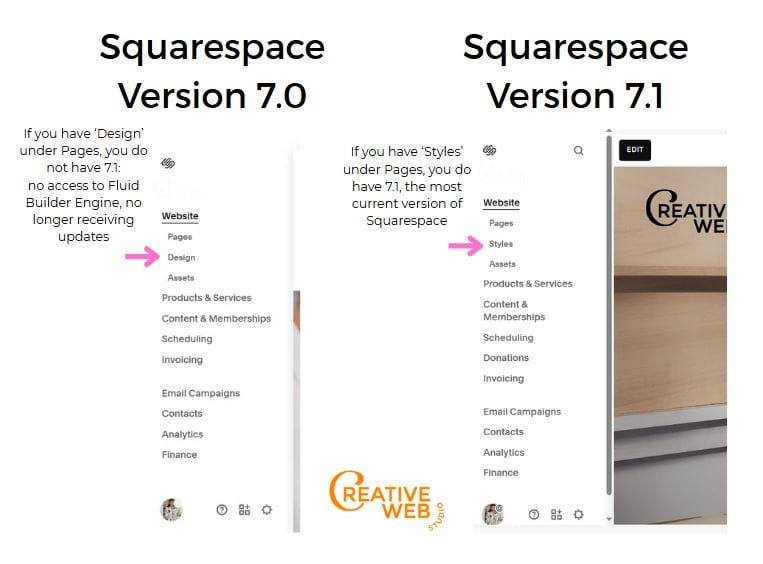
In the past, upgrading your Squarespace website from 7.0 to 7.1 was a daunting task, often requiring users to rebuild the majority of their sites from scratch, as well as losing content on pages.
However, with the introduction of the new upgrade tool, the process has become much easier to upgrade your Squarespace website to 7.1, as well as previewing how it will appear before clicking ahead with it.

How do I Know if my Squarespace Website is on Version 7.0 or 7.1?
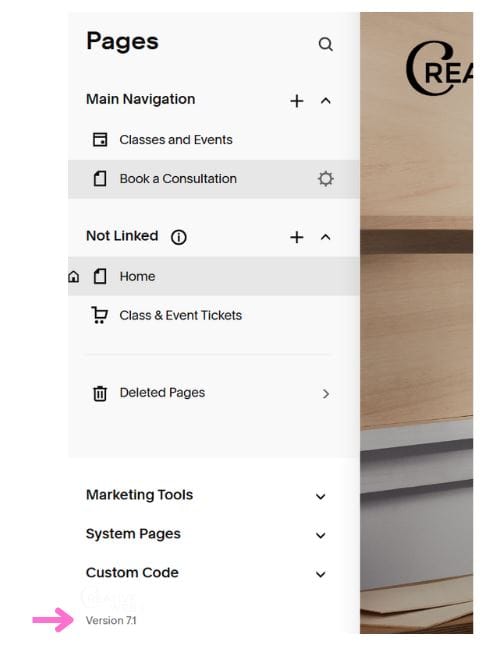
When you are in your website and editing in Pages, scroll to the bottom left hand side.
Your Squarespace version will be displayed:
Let’s guide you through the steps to upgrade your Squarespace website to version 7.1 in 2026.
Step 1: Backup Your Squarespace Website in your Account Dashboard
Before starting on your Squarespace 7.1 website upgrade, it's essential to create a backup of your current website. This step makes sure you have a safety net, just in case the upgrade doesn't go as perfectly planned.
To create a copy of your Squarespace website, navigate to your Squarespace dashboard, and click on the three dots in the right-hand corner of your website.
Choose "Duplicate Website":
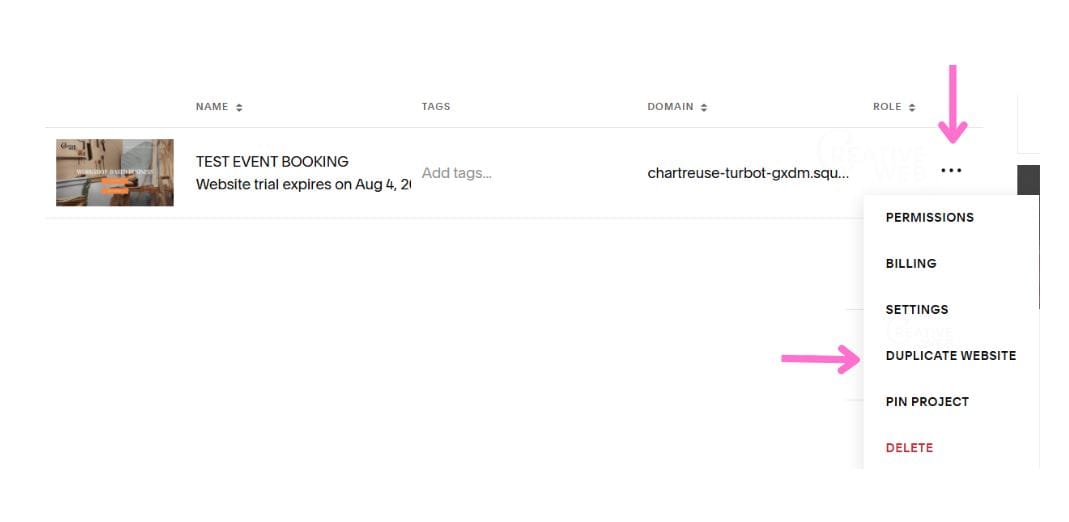
This action will create a free trial copy of your Squarespace website for a short period of time, but allows you to thoroughly check all your original content.
Step 2: Proceed with Updating to Squarespace Version 7.1 in your Website’s Design
To continue on with your Squarespace 7.1 website upgrade, go into your website and click the "Design" section (under Pages).
Select "Update to Version 7.1.":
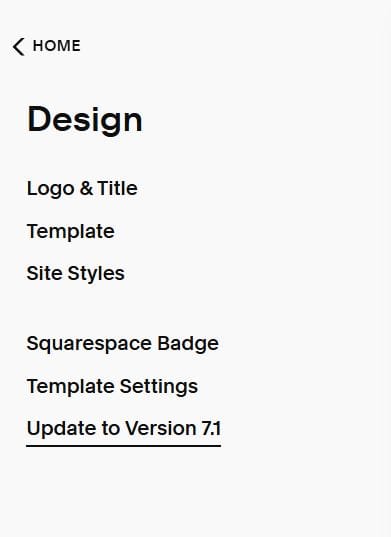
This will take you into a preview mode, allowing you to explore the new features of version 7.1 without making your site live. In preview mode, you can experiment with design changes and familiarise yourself with the new platform.
Remember, any changes made in preview mode won't affect your live site until you choose to publish them.
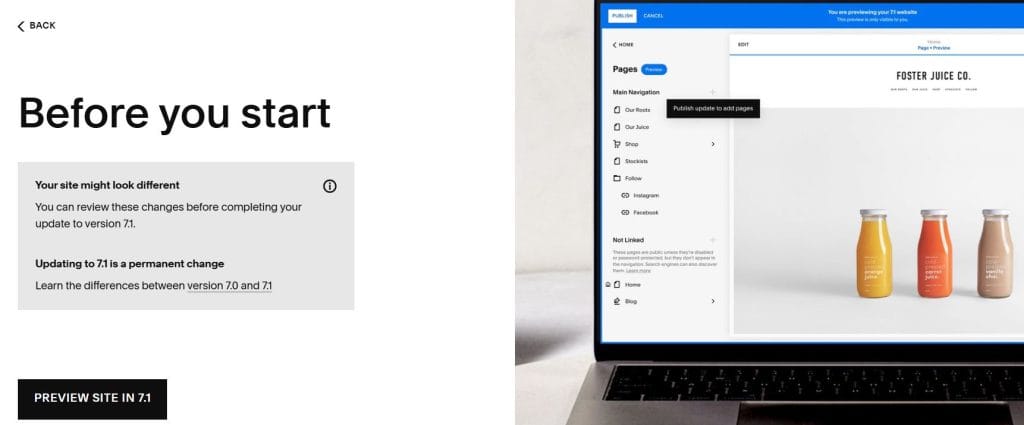
I recommend setting up your styling for your website’s global fonts, colours, heading sizes etc. and you can exit and check your duplicate of your original website to ensure as much styling can be set.
Step 3: Publish Your Squarespace 7.1 Website
Once you're satisfied with the changes (not everything will be perfect but you can ensure the majority is working) and ready to make the upgrade official, the next step is irreversible once upgraded.
Click "Publish."
This action will convert your Squarespace website from version 7.0 to 7.1.
After publishing, review your site and click into each page, and each section to ensure everything appears as desired and make any necessary space and sizing adjustments.
Top Tips for Using Squarespace’s Version 7.1 Fluid Engine
One of the standout features of Squarespace version 7.1 is the Fluid Engine editor, which offers enhanced design flexibility.
To upgrade to this editor in each page’s section, enter editing mode on your homepage and click each section of your page.
When you click into each section, you'll see an “Upgrade” button in the top left-hand corner of the section, allowing you to switch to the Fluid Engine Grid. You will need to do this for every section on every page to allow Fluid Engine use (it’s absolutely worth it).
Be aware that this transition may result in further layout changes, so have some extra time here to refine your design.
As with the version upgrade, this change is also irreversible.
This may feel different to the index style long pages of Squarespace version 7.0, and you may need to add new sections to separate your content further.
As you work through each page, keep saving your work regularly. And don’t forget to double check your duplicate original 7.0 website against your newly upgrade 7.1 website – inspect each image, heading, button and text have remained in your new site.
Is it Worth Upgrading Squarespace Version 7.0 to 7.1?
Upgrading your Squarespace site from version 7.0 to 7.1 is now a straightforward process and worth the effort, thanks to the new upgrade tool and access to Squarespace’s Fluid Engine for easy drag and drop editing.
By following these steps, you can seamlessly transition to the latest version of Squarespace that has current updates and support, unlocking powerful features like the Fluid Engine.
Remember to back up your site, and update as much styling as possible before completing the upgrade - take advantage of preview mode to ensure a smooth experience transitioning to Squarespace version 7.1.
Embrace the new design possibilities with your access to Fluid Engine, and enjoy the fresh look of your updated website after upgrading!

Brisbane Creative Web Studio is your Brisbane Squarespace Partner
Prefer your own Squarespace service booking for upgrading your website from version 7.0 to 7.1 with a Squarespace Partner?
Enquire for your Squarespace service booking with Brisbane Creative Web Studio, reducing your stress and technical mess with your website woes.

